

ROLE
ROLE — Release of Liability Electronically helps landings and boat owners collect passengers’ digital signatures before boarding. Create the agreements your operation requires, choose which trips require them, and check completion in your trip manifest.
Beta offer: ROLE is free for all GoFish Rocks users through December 31, 2026. Share your feedback and suggestions at info@gofish.rocks.
Start here: Create a waiver → add its content → set trip requirements → passengers sign → check the manifest.
On this page: Create a waiver · Add content · Set requirements · Passenger signing · Check status
1. Create a waiver
- In your Admin Dashboard, open R.O.L.E. → Waivers.
- Click Add New Waiver.
- Enter a descriptive Title so your staff can identify the agreement. Passengers see the waiver content, not this internal title.
- Choose what happens if a passenger is moved to another trip using the options below.
- Keep Active checked for a waiver you want to use, then click Create Waiver.
| Move setting | When the previous signature can still apply |
|---|---|
| Never — must sign again after any move | The passenger must sign again after moving. The form recommends this when the content names the trip or boat. |
| Only if the new trip uses the same boat | The waiver can carry over when the passenger moves to another trip on the same boat. |
| Always — a move does not affect it | A move does not invalidate the signed waiver. |
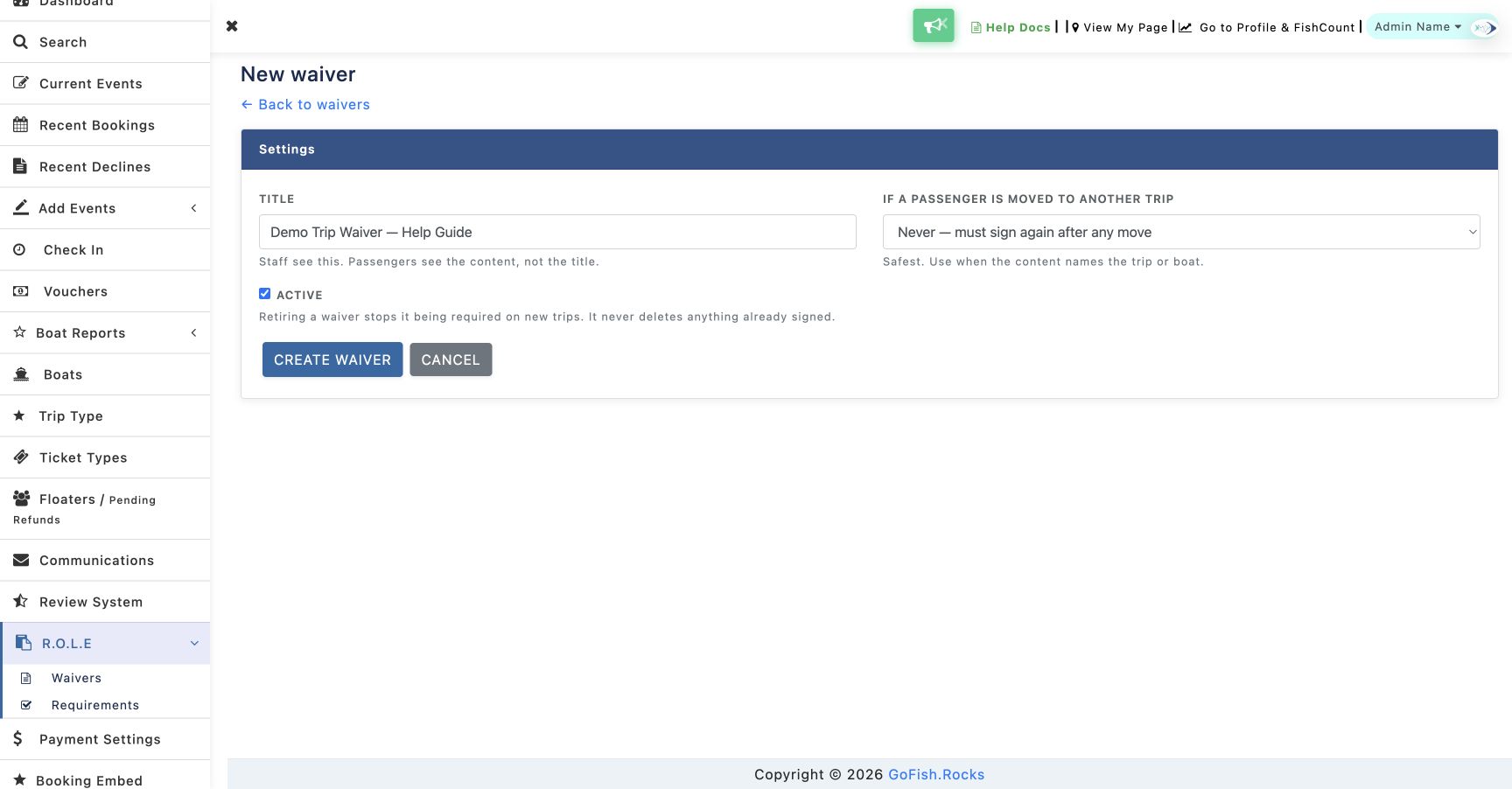
A new waiver is not ready to sign until you add at least one content version. Repeat these steps for each separate agreement you require.
2. Add the waiver content
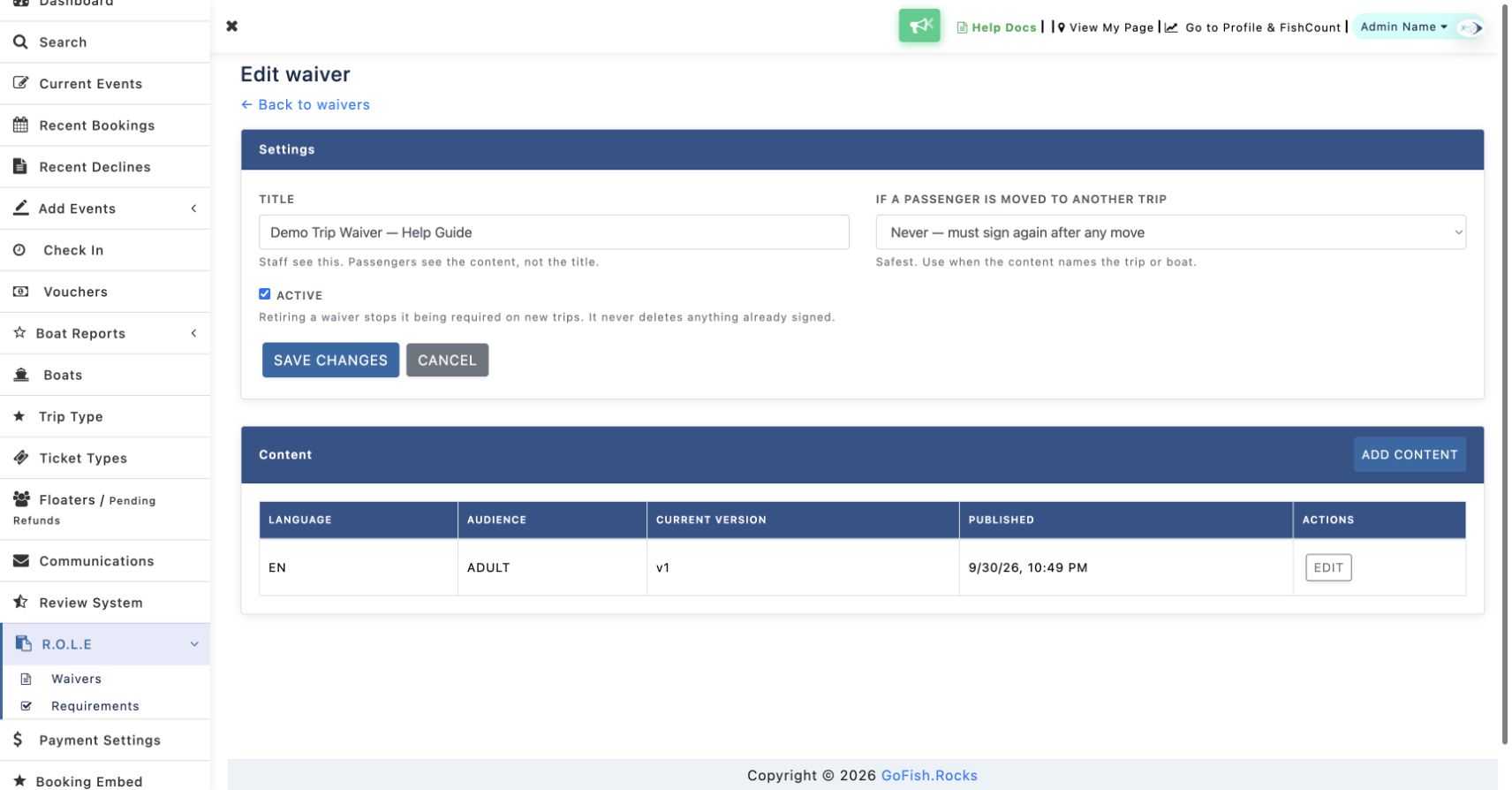
- Open the waiver and click Add Content.
- Choose the Language: EN for English or ES for Spanish.
- Choose the Audience: ADULT or MINOR. The current audience selector also includes ALL.
- Enter and format the agreement passengers should read.
- Include
{Signature}exactly as shown, with braces. Put it where you want the passenger’s signature to appear. - Click Submit to save new content. When editing existing content, click Update.
You can provide Adult/English, Adult/Spanish, Minor/English and Minor/Spanish content within the same waiver. Add the versions your operation needs. If there is only one content version, it becomes the default for everyone, regardless of age or selected language. Creating a waiver does not automatically translate its wording.
Use the supported substitutions
The table below the editor lists the substitutions available in your waiver. Type them exactly as shown.
| Substitution | Purpose |
|---|---|
{Signature} | Required. Adds the signature pad; the signed PDF displays the drawn signature here. Content cannot be published without it. |
{CheckBox} | Optional when writing your waiver. Adds an extra checkbox the passenger must check to acknowledge a specific clause. |
{Name} | The signer’s entered legal name. |
{AgreementSignDate} | The signing date, not the trip date. |
{LandingName} | The landing associated with the trip. |
{BoatName} | The boat associated with the trip. |
A standard “I agree” checkbox is always included at the bottom of the signing form. Use {CheckBox} only when you want an additional acknowledgment. Unknown or misspelled substitutions remain visible in the signed document and are flagged with a warning when you publish.
To retire a waiver, open its settings, clear Active and save. The settings explain that retiring it stops it being required on new trips and does not delete documents already signed.
3. Choose which trips require waivers
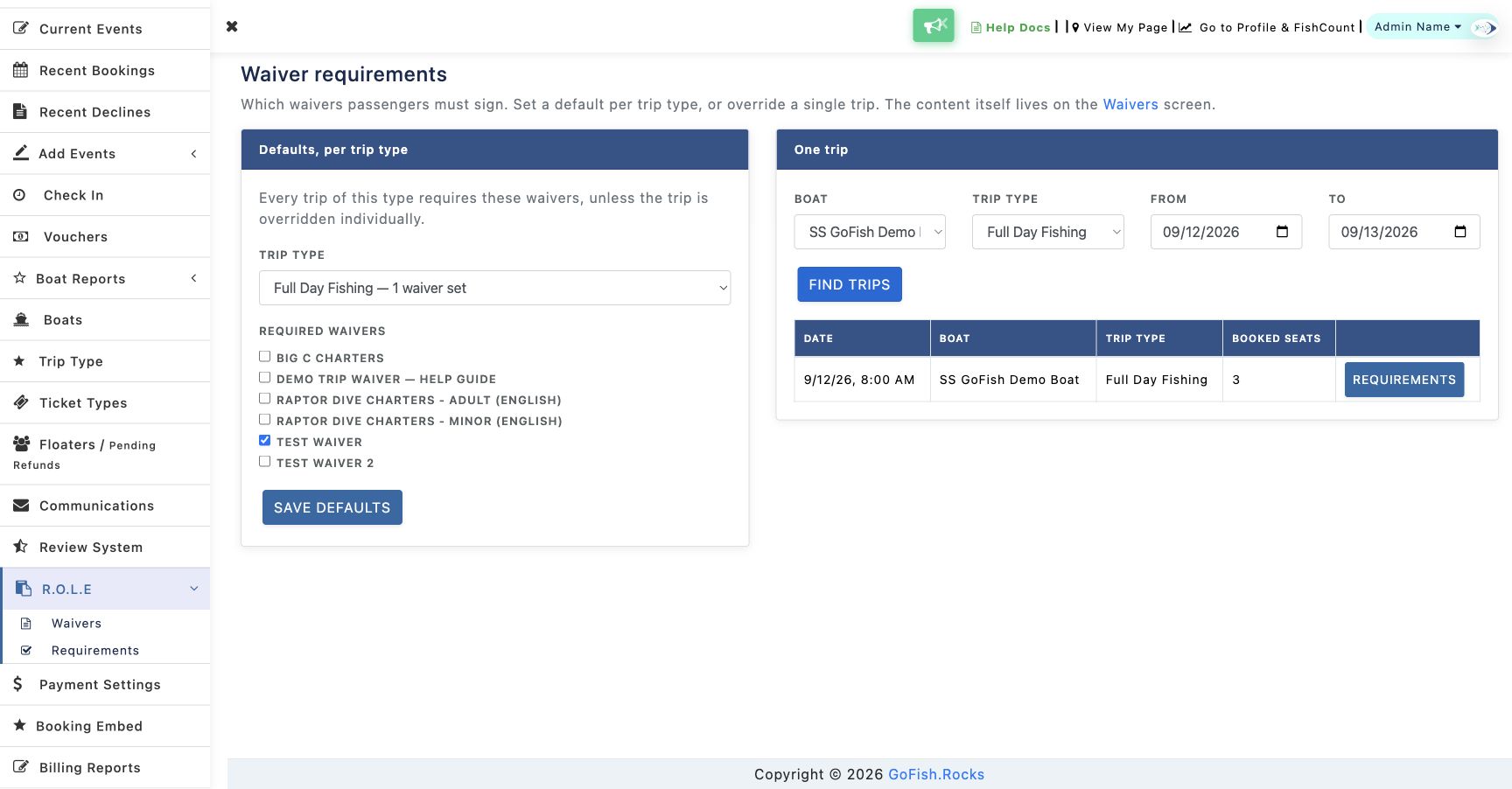
Open R.O.L.E. → Requirements after creating your waivers and adding content. Creating a waiver alone does not make it required for a trip.
Set defaults by Trip Type
Set defaults so new trips created using that Trip Type carry the waiver requirement. To add a requirement to an existing departure, use One trip below.
- Under Defaults, per trip type, select the Trip Type.
- Check each waiver you want to require for trips using that Trip Type.
- Click Save Defaults.
Add requirements to an existing trip
- Under One trip, choose the boat and Trip Type as needed, then enter a date range.
- Click Find Trips.
- Click Requirements beside the correct trip in the results.
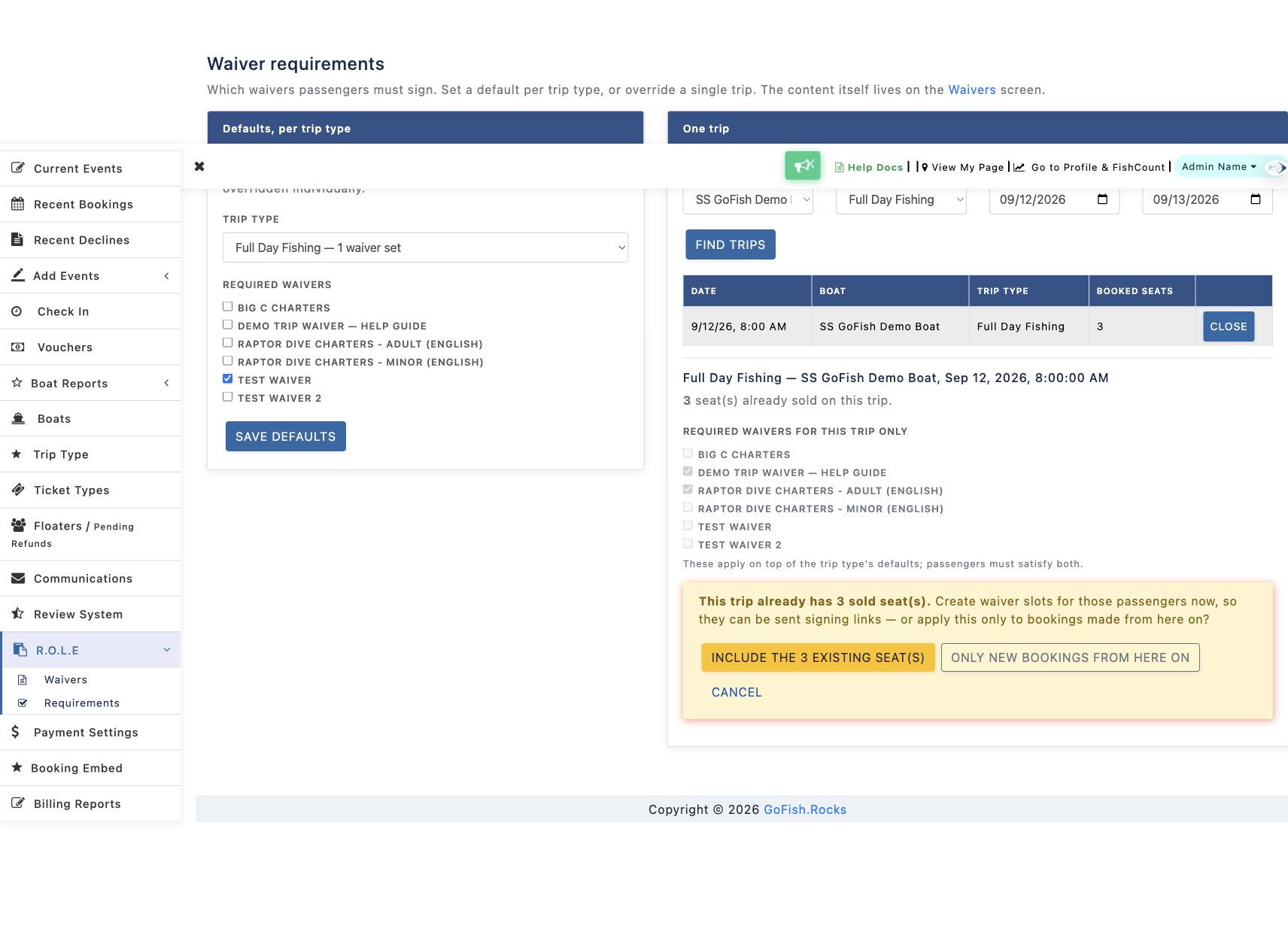
- In the waiver list below the results, check each agreement required for that trip.
- Click Save Trip Requirements.
The trip-specific list states that these waivers apply on top of the Trip Type’s defaults; passengers must satisfy both sets of requirements.
Search tip: If a same-day search returns no trip, set the To date to the following day. In the example, September 12–13 finds the September 12 departure.
When passengers have already booked
If the trip already has sold seats, saving requirements presents two choices:
- Include the existing seat(s): Create waiver slots for passengers already booked on the trip.
- Only new bookings from here on: Apply the change only to subsequent bookings.
Choose the option that matches your intended rollout. The number of existing seats is shown in the prompt.
4. How passengers complete their waivers
When a passenger books a trip with required waivers, the booking confirmation page provides a form for passenger information. The confirmation email leads to the same page. Share links let the booking customer send the ROLE link to other people in their party by email or SMS.
On the ROLE signing page, passengers:
- Choose English or español.
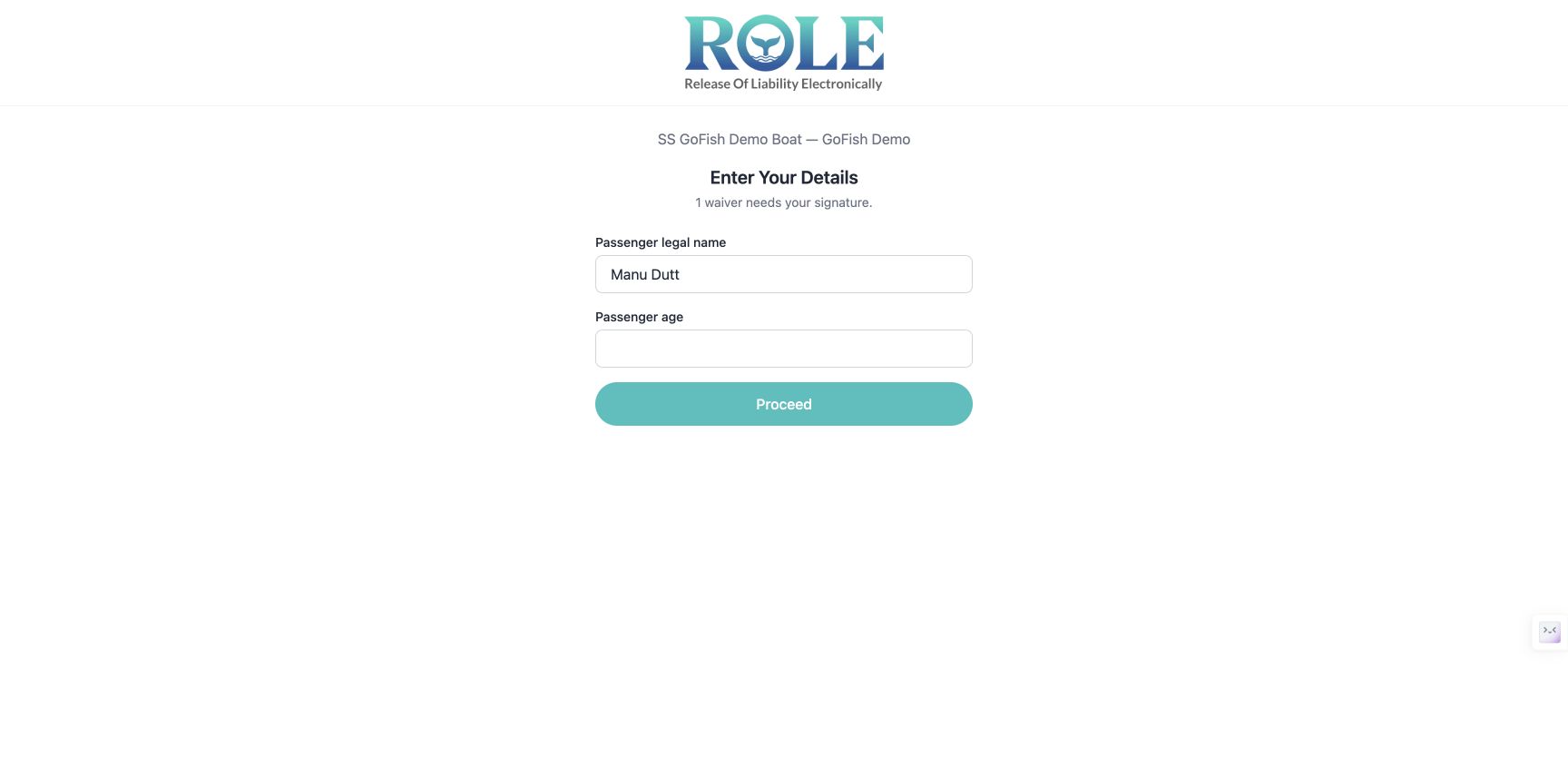
- Enter their legal name and age, then click Proceed.
- Read the required agreement, complete its acknowledgments and add their digital signature.
- Submit the form and complete any other required waivers.
5. Check waiver completion in the manifest
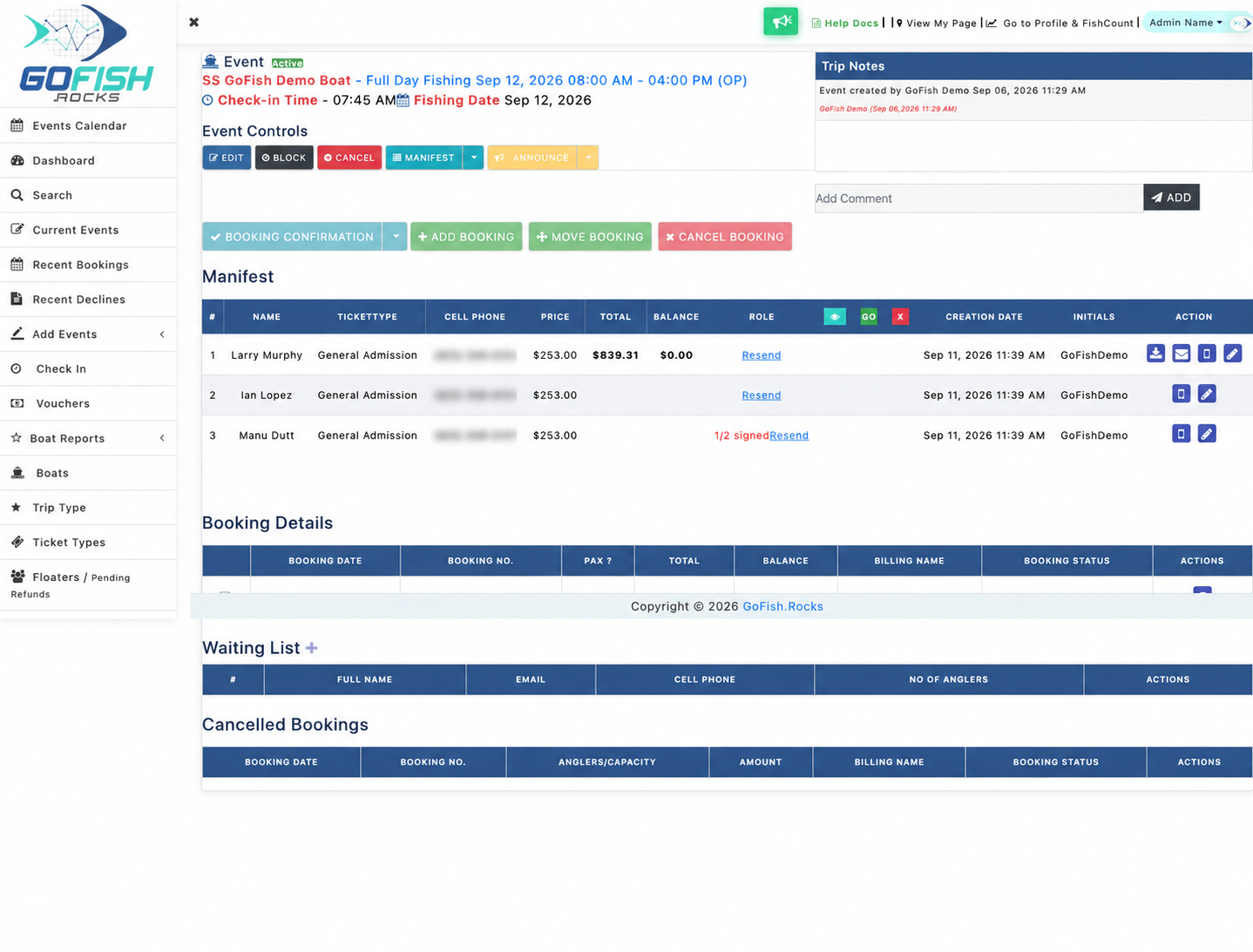
Open the trip’s event details. Use the dropdown beside Manifest and select View Manifest. The ROLE column shows waiver status for passengers.
For example, “1/2 signed” means the passenger has completed one of two required waivers; another is still outstanding. Check completion before boarding. The booking detail page also shows a waiver count beside each ticket and offers name/email editing and a Re-send link control.
Quick troubleshooting
- The waiver cannot be signed: Confirm it has at least one saved content version.
- Content will not publish: Check that
{Signature}appears exactly as shown. - Everyone sees the same wording: Check whether you have supplied only one content version; a single version acts as the default.
- Existing passengers are missing a new requirement: Review whether you applied the trip change to existing seats or only new bookings.
- A moved passenger must sign again: Review the waiver’s passenger-move setting.
Questions or suggestions? Email info@gofish.rocks. Your feedback helps improve ROLE during beta.